



















Perfect!
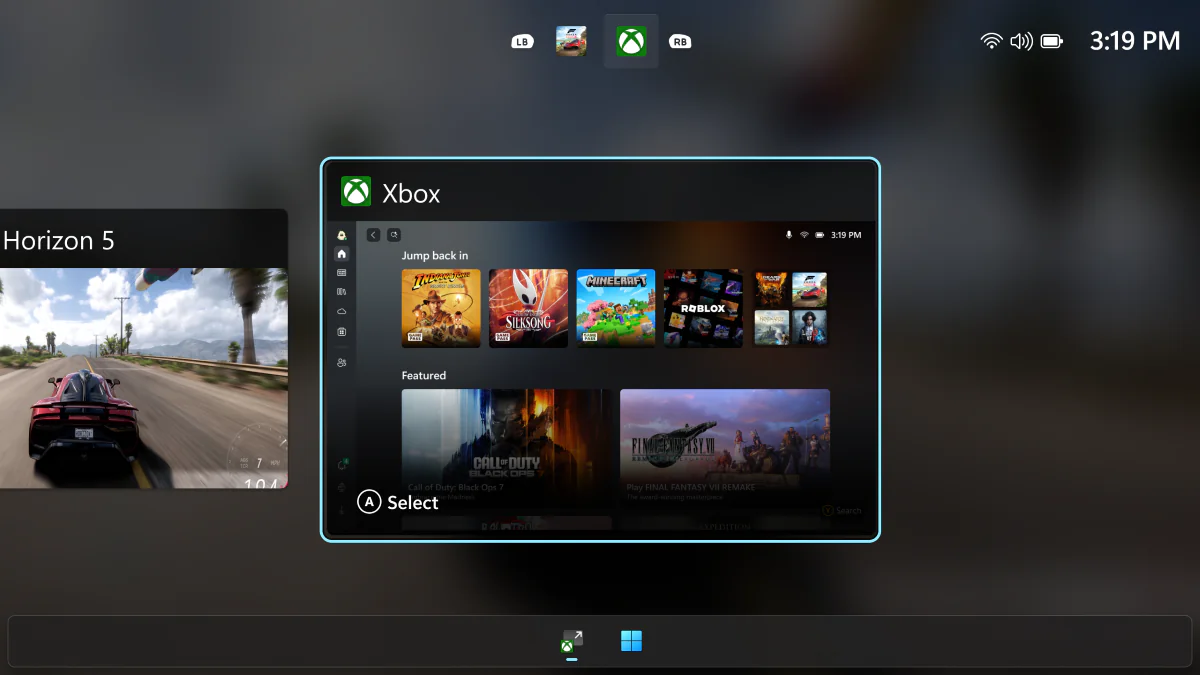
In our review of the ROG Xbox Ally X, I bemoaned that I was unable to access one of my most-used programs — PXPlay, a PS5 remote play program — inside the unit’s resource-saving Xbox Full Screen Experience. As it turns out, you can, and this post will detail how.
While you’re unable to use the Xbox app to launch PXPlay — or any other program you wish, really — you can do so using the ASUS Armoury Crate instead, staying withing Full Screen Experience. Really, it’s the same way that I can access PXPlay (or any other program) via the MSI Claw Command Center.
How to add games/apps to the ASUS Armoury Crate on the ROG Xbox Ally or ROG Xbox Ally X
Here’s what you’ll need to do on either the ROG Xbox Ally or ROG Xbox Ally X:
- Start your unit (staying within the Full Screen Experience is optional, but why not?) and hit the Xbox button to get into Game Bar
- Navigate over to the Armoury Crate and launch it by selecting Open Armoury Crate SE
- Go to the Library by selecting the folder icon in the top-left corner of the screen
- Hit the Options button to manage your library
- Select Add Game/App to library
- Select your game/app from the list, or navigate to it if needed
- Repeat the process as much as you’d like
How to launch games/apps inside the Xbox Full Screen Experience on ROG Xbox Ally or ROG Xbox Ally X
Once you’ve followed the instructions above, access your custom games/apps in the Xbox Full Screen Experience by doing the following:
- Start your unit (staying within the Full Screen Experience) and hit the Xbox button to get into Game Bar
- Navigate over to the Armoury Crate and launch it by selecting Open Armoury Crate SE
- Go to the Library by selecting the folder icon in the top-left corner of the screen
- Select the game or app you want to launch and hit the A button
That’s it!
Once you’ve launched the game or app (maybe Chrome for handy Stevivor guides?) inside the Xbox Full Screen Experience, you can hold the Xbox button to navigate between open programs, or close those you no longer need open.
If you’ve got any other handy tips or tricks for the ROG Xbox Ally or ROG Xbox Ally X, why don’t you share them with us in the comments section, below?
This article may contain affiliate links, meaning we could earn a small commission if you click-through and make a purchase. Stevivor is an independent outlet and our journalism is in no way influenced by any advertiser or commercial initiative.