
It's time to wrap... your head around game cards.
If you’ve just been given, or are giving, a Nintendo Switch 2 during the holidays, you’re a good egg. Here’s a quick guide with everything you need to know about it!
(And a reminder to those giving the console as a gift: it’s not a bad idea to open the console and set it up before hand, installing all updates prior to repackaging it, wrapping it and putting it under the tree!)
The console
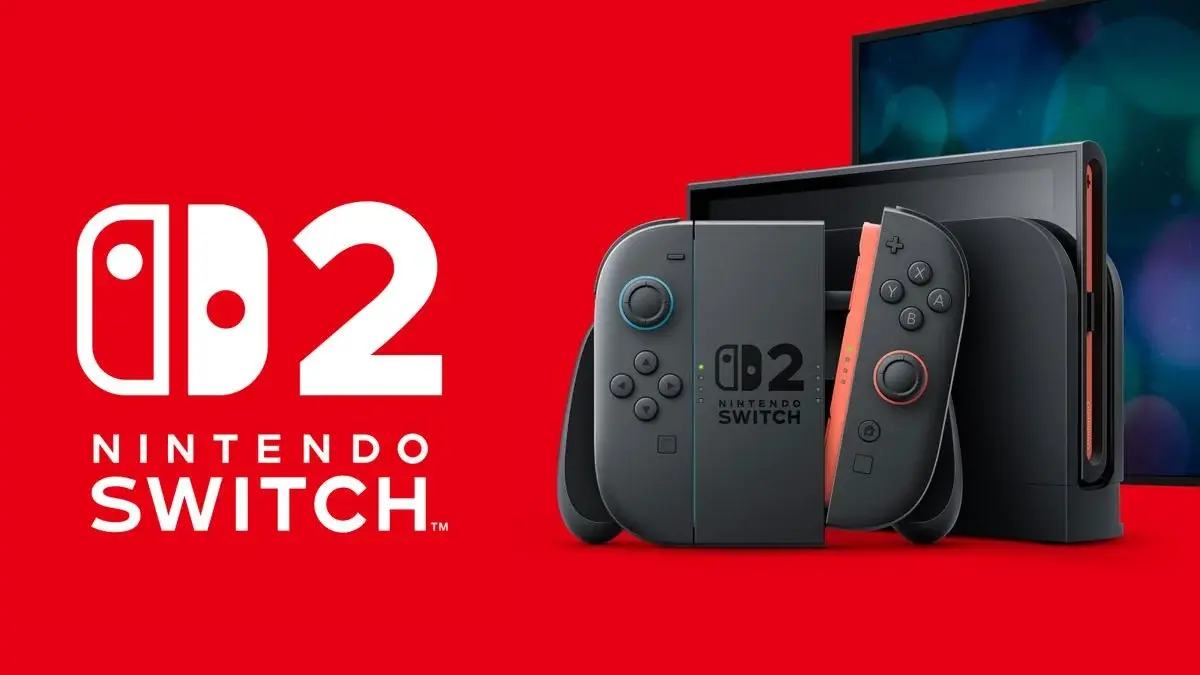
Released earlier this year, the Switch 2 comes in one flavour and one flavour only. Like its predecessor, the Switch, the Switch 2 is able to be used on your TV (docked mode) or portably (handheld mode). There’s a middle ground too — you can pull out the kickstand on the back of the Switch 2’s touchscreen to activate tabletop mode.
The best part about the handheld-home console hybrid is that it’s great at home and on the go. Long story short, most titles run in 1080p (and up to 120 frames-per-second) on the Switch 2’s handheld screen (handheld, tabletop modes) and in up to 4K on your TV when docked.

There are a variety of gameplay configurations that can be used, some using the console’s magnetically-attachable Joy-Con 2 controllers, and some not. In proper handheld mode, you’ll strap a Joy-Con 2 to either side of the Switch 2’s screen and play away.
The Joy-Cons 2 can be removed — press the toggle on the back of the console to do this — and held in your hands while you’re still enjoying playback on the Switch’s screen; conversely, a Pro controller can be paired and used in this fashion instead.
The Joy-Cons or a Pro controller can also be used while your Switch is docked and gameplay is projected to your television. Finally, the Joy-Con 2s can also work as an old-school mouse in strategy games like Civilization 7, or as your means of aiming in the newly-released shooter Metroid Prime 4.
Related: Our Nintendo Switch 2 preview
The Switch is powered through a USB-C outlet at the bottom of its screen; there’s also one at the top of the console now too. It comes with a spare USB-C cable that’s meant to connect it to a Pro Controller; that cable can be used to charge your console when on the go. In this case, it’s easiest and fastest to connect the USB-C to a strong enough power adapter (like the one that comes with your iPhone, as an example) and plug it into a wall.
The Switch also supports Nintendo’s popular amiibo figurines, with readers inside Joy-Cons and Pro Controllers alike.
If you look at the image above, you can also see where Switch and Switch 2 game cards can be inserted to actually play something, but we’ll get to that in a moment.

Interface and console-specific features
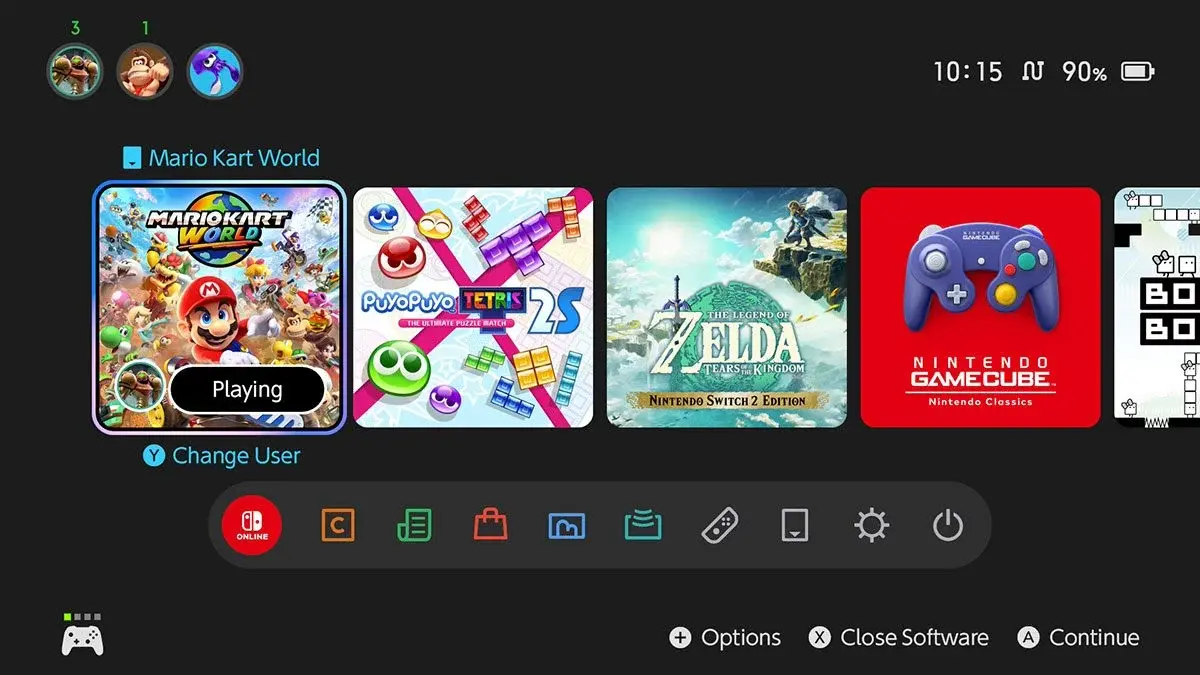
There’s not much to the Switch UI — games are represented as squares on your home screen. If you’re playing a bunch of games, it’s very smart to invest in a MicroSD Express card to increase the console’s meagre storage capability. It’s incredibly important to note that the MicroSD Express card needed by the Switch 2 is relatively new, and decidedly different to the MicroSD card used by the original Switch (note the lack of “Express” there).
Related: Our Switch 2 review
The left-hand Joy-Con 2 has a square button that can be used to capture screencaps and gameplay videos, while the right-hand Joy-Con 2 has a “C” button that can be used for GameChat, which will eventually require a Nintendo Switch Online subcription to use.
In addition to chat, online play is possible via the Nintendo Switch Online subscription service. The most expensive version of that service also includes the likes of retro NES, SNES, N64, Sega Genesis, and even VirtualBoy games alongside cloud saves.
That flavour of subscription, Nintendo Switch Online + Expansion Pack, will set you back $59.95 AUD per year for an individual subscription.
Games and game cards
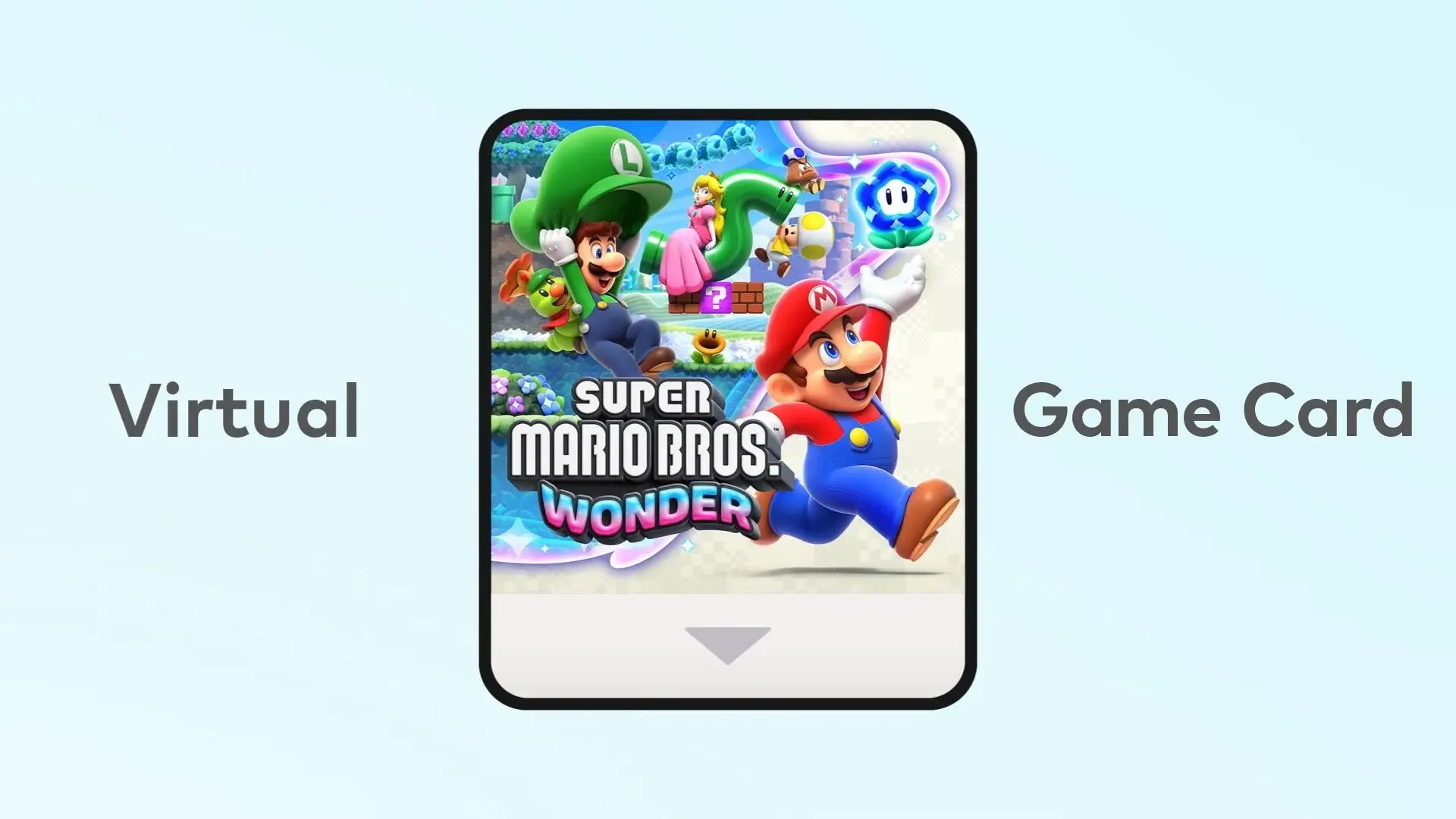
Here’s where it gets a bit confusing. The Switch 2 can play physical game cards, bought from the likes of Amazon or EB Games, as well as digital games which are dubbed “virtual game cards” by Nintendo. The Switch 2 can also play original Switch physical and digital games.
Virtual game cards are pretty much digital representations of the physical thing, meaning those with multiple Switch and Switch 2 consoles can pass around a virtual card just like they would a physical one. What that really means is that one person on one Switch or Switch 2 can play one game at that specific time, and you’ll need to load and unload it from whichever machine you want to do that.
You can also turn off virtual game cards and go back to traditional online licenses using this guide.
As per usual, Nintendo’s first-party support is unparalleled.
Here are links to the biggest Switch and Switch 2 exclusive titles of the last few years.
- Metroid Prime 4 Beyond
- Mario Kart World
- Donkey Kong Bananza
- Kirby Air Riders
- Super Mario Bros Wonder
- The Legend of Zelda Tears of the Kingdom
- Pikmin 4
- Animal Crossing New Horizons
- The Legend of Zelda Breath of the Wild
Enjoy your new hardware!
This article may contain affiliate links, meaning we could earn a small commission if you click-through and make a purchase. Stevivor is an independent outlet and our journalism is in no way influenced by any advertiser or commercial initiative.